AI Video Prompt Engineering: How to Write Prompts That Actually Work
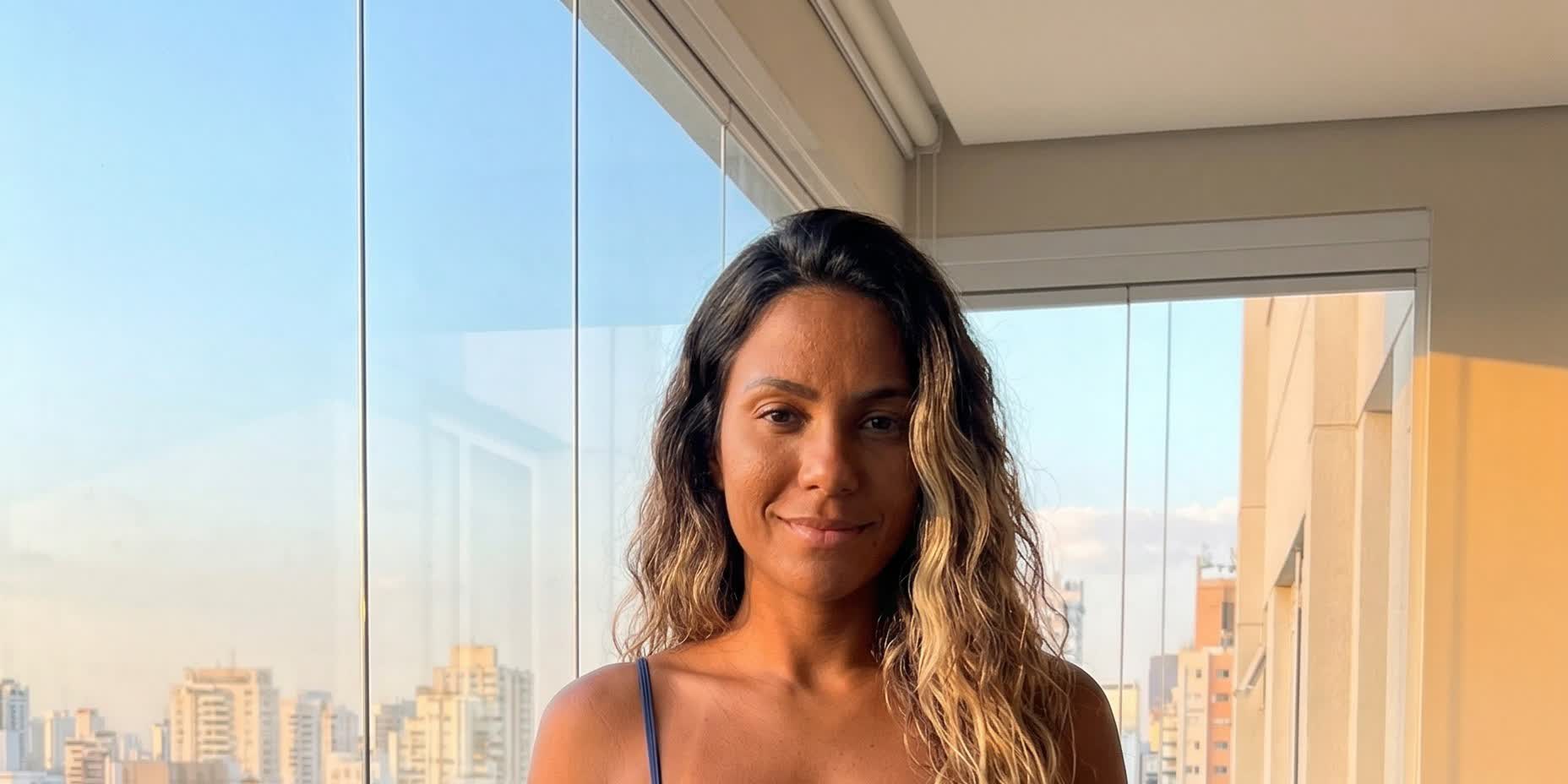
Writing a prompt for an AI video generator is like giving directions to a cinematographer — the more precise you are, the better the result.
If your AI videos look random, inconsistent, or nothing like what you imagined, the problem is almost always the prompt. In this guide, you'll learn exactly how to write prompts that produce the results you actually want.
The Anatomy of a Great Prompt
Every effective AI video prompt follows a simple formula:
Subject + Action + Style + Camera + Mood
Here's what each part does:
- Subject — Who or what is in the frame ("a woman in a red dress", "a cat on a windowsill")
- Action — What's happening ("walks slowly toward camera", "turns head and smiles")
- Style — Visual look ("cinematic", "film grain", "golden hour lighting")
- Camera — How the camera behaves ("static locked camera", "slow dolly in", "close-up")
- Mood — Emotional tone ("dreamy", "dramatic", "casual and relaxed")
Example using the formula:
> A woman in a blue dress stands on a balcony overlooking the city. She turns to face the camera and smiles softly. Golden hour lighting, warm tones. Static locked camera, medium shot. Calm, intimate mood.
This single prompt gives the AI everything it needs: who, what, how it looks, and how it feels.
The Do's of Prompt Writing
Be Specific About Motion
AI generators need explicit instructions for movement. Don't just say "a person dancing" — describe the motion: "a woman slowly raises her arms above her head and sways to the left."
Describe the Lighting
Lighting changes everything. Use phrases like:
- "Soft diffused daylight"
- "Neon-lit nightclub, pink and blue"
- "Harsh overhead fluorescent lighting"
- "Golden hour backlight with lens flare"
Lock the Camera When Needed
If you want a stable, professional shot, always add camera control phrases:
Static locked camera— no movement at allNo zoom— prevents unexpected focal changesNo camera movement— reinforces stability
Set the Mood with Adjectives
Words like cinematic, dreamy, dramatic, gritty, ethereal, documentary-style dramatically change the output.
The Don'ts of Prompt Writing
Don't Be Vague
Bad: "A cool video of someone doing something interesting"
Good: "A man in a leather jacket lights a cigarette under a streetlamp. Noir film style, black and white, static camera."
Don't Overload the Prompt
Cramming 10 actions into one prompt confuses the model. Stick to 1-2 clear actions per generation.
Don't Contradict Yourself
Avoid: "Bright sunny day, dark moody atmosphere." Pick one direction and commit.
Don't Forget the Camera
Without camera instructions, the AI will choose randomly — sometimes zooming, sometimes panning. If you don't specify, you lose control.
Negative Prompts: What NOT to Generate
Negative prompts tell the AI what to avoid. They're just as important as your main prompt.
Common negative prompts:
blurry, low quality, distorted— prevents quality issuesextra fingers, deformed hands— fixes anatomical problemstext, watermark, logo— removes unwanted overlayscartoon, anime— when you want photorealismfast motion, shaky camera— when you need stability
Pro tip: Start with a baseline negative prompt like blurry, low quality, distorted, deformed and add specifics based on what you're generating.
Settings That Affect Your Output
Your prompt is only half the equation. These settings on Musebox directly impact results:
Quality (Low / Medium / High)
- Low — Fastest, cheapest, good for testing prompts
- Medium — Balanced quality and speed
- High — Best results, higher credit cost, longer processing
Tip: Draft your prompt on Low quality first. Once you're happy with the composition, regenerate on High.
FPS (30 / 45 / 60)
- 30 FPS — Standard, smooth enough for most scenes
- 45 FPS — Noticeably smoother, great for slow-motion looks
- 60 FPS — Ultra smooth, best for fast action or cinematic slow-mo
Duration (5 / 7 / 10 / 12 seconds)
Longer isn't always better. Short clips (5-7s) are easier for the AI to keep consistent. Use 10-12s only when the scene truly needs it.
Seed
The seed number controls randomness. Same prompt + same seed = same result. Use this to:
- Reproduce a great result (copy the seed)
- Iterate on a scene (keep the seed, tweak the prompt)
- Explore variations (change the seed, keep the prompt)
Real Examples: Bad vs. Good Prompts
Example 1: Portrait Video
❌ Bad: "A woman looks at camera"
✅ Good: "A woman with curly hair looks directly into the camera and slowly smiles. Soft natural window light from the left. Close-up shot, static camera. Warm, intimate mood."
Why it's better: Specifies hair, action timing, light source, framing, and mood.
Example 2: Action Scene
❌ Bad: "A car driving fast"
✅ Good: "A black sports car speeds down a rain-soaked highway at night. Water splashes from the tires. Low tracking shot following the car. Neon city lights reflected on wet asphalt. Cinematic, intense."
Why it's better: Describes the environment, weather, camera movement, and atmosphere.
Example 3: Lifestyle Content
❌ Bad: "Someone at a cafe"
✅ Good: "A young woman sits at a sidewalk café, sipping espresso. She puts down the cup and looks out at the street. Soft morning light, shallow depth of field. Medium shot, no camera movement. Relaxed Parisian vibe."
Why it's better: Tells a mini-story with specific actions, setting, and emotional direction.
Pro Tips for Advanced Users
1. Think in Shots, Not Videos
Instead of one long prompt, break your scene into 5-7 second shots. Each shot gets its own prompt with consistent style keywords. This gives you way more control. Check out our shot-by-shot prompting guide for the full technique.
2. Reference Cinematic Styles
AI models understand film references. Try adding:
- "Wong Kar-wai color grading"
- "Wes Anderson symmetry"
- "Michael Mann neon noir"
- "Terrence Malick natural light"
3. Use Templates as Starting Points
Don't start from zero. Browse our template library — each template already has optimized prompts built in. You can use them as-is or customize the prompt to match your vision.
4. Iterate with Seeds
Found a result that's 80% right? Copy the seed, adjust the prompt slightly, and regenerate. Small tweaks with the same seed often produce dramatically better results than starting fresh.
5. Train Your Own Template
Once you've mastered prompt writing and created a style you love, train it as a custom template. Other users can generate with your template, and you earn credits from every generation.
Start Creating Better AI Videos
Now you know the formula. Every great AI video starts with a great prompt — be specific, control the camera, set the mood, and iterate.
Ready to try it? Open the Musebox template library and put these techniques to work.
Follow us for more AI tutorials and tips: