Video Extend Sequence & Presets: Chain Multiple Templates Into One Video

We just launched one of the most requested features on Musebox — Video Extend Sequence. Now you can chain multiple templates together into a single, continuous video. One photo or video in, a multi-scene masterpiece out.
Whether you want a quick 2-step combo or a full 5-step cinematic sequence, it's all possible — and with our new Presets, it's literally one tap.
What Is Video Extend Sequence?
Video Extend Sequence lets you chain up to 5 templates into a pipeline. Each step takes the previous output and applies a new style or scene to it. The result is one continuous video that flows naturally from scene to scene.
Think of it like building a story:
- Step 1: Your source photo/video → first template
- Step 2: Output of step 1 → second template
- Step 3: Output of step 2 → third template
- ...and so on, up to 5 steps.
The total cost is the sum of all template prices in your sequence.
How It Looks
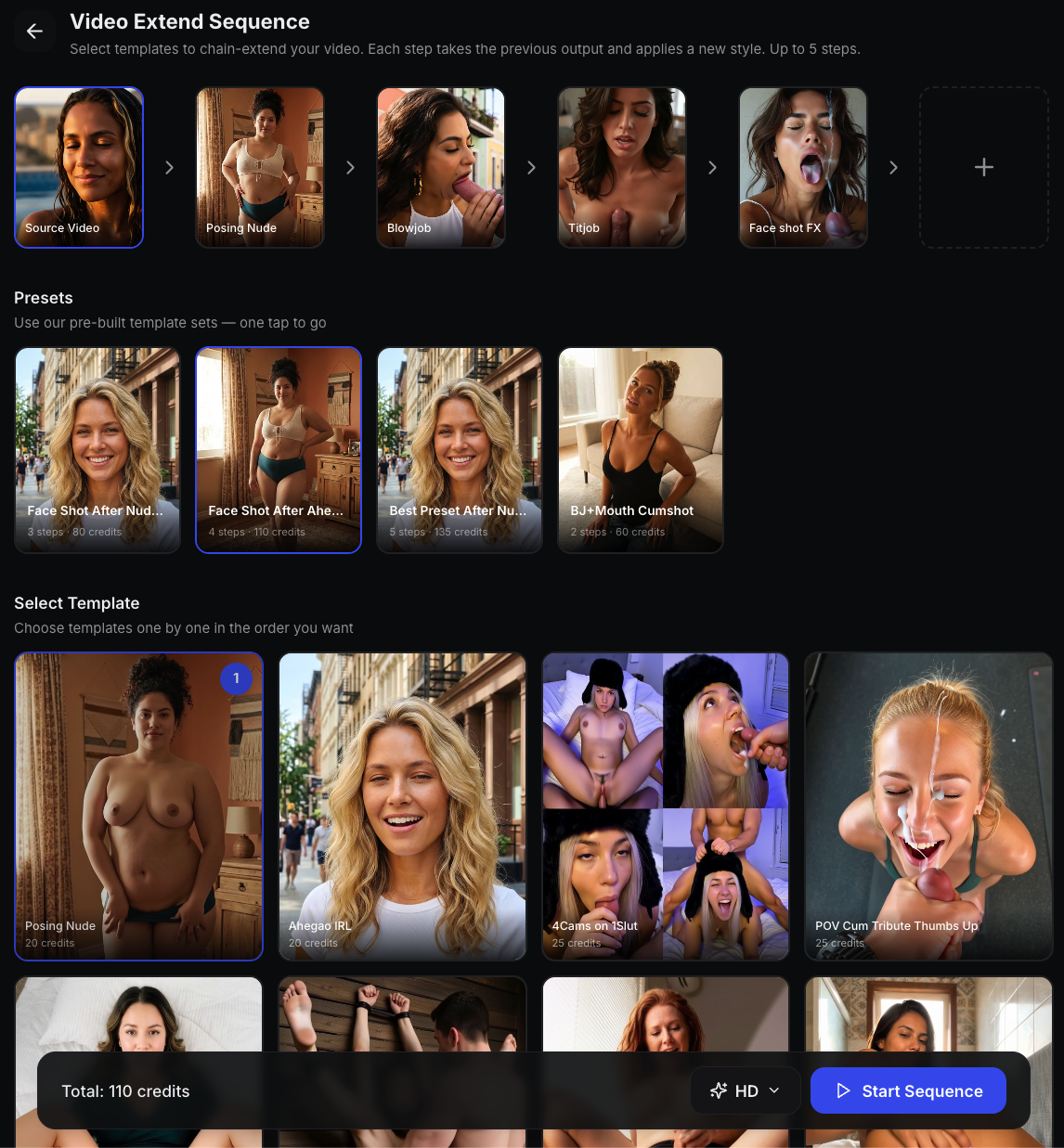
Here's the full interface — the pipeline at the top, presets in the middle, and the template picker below:
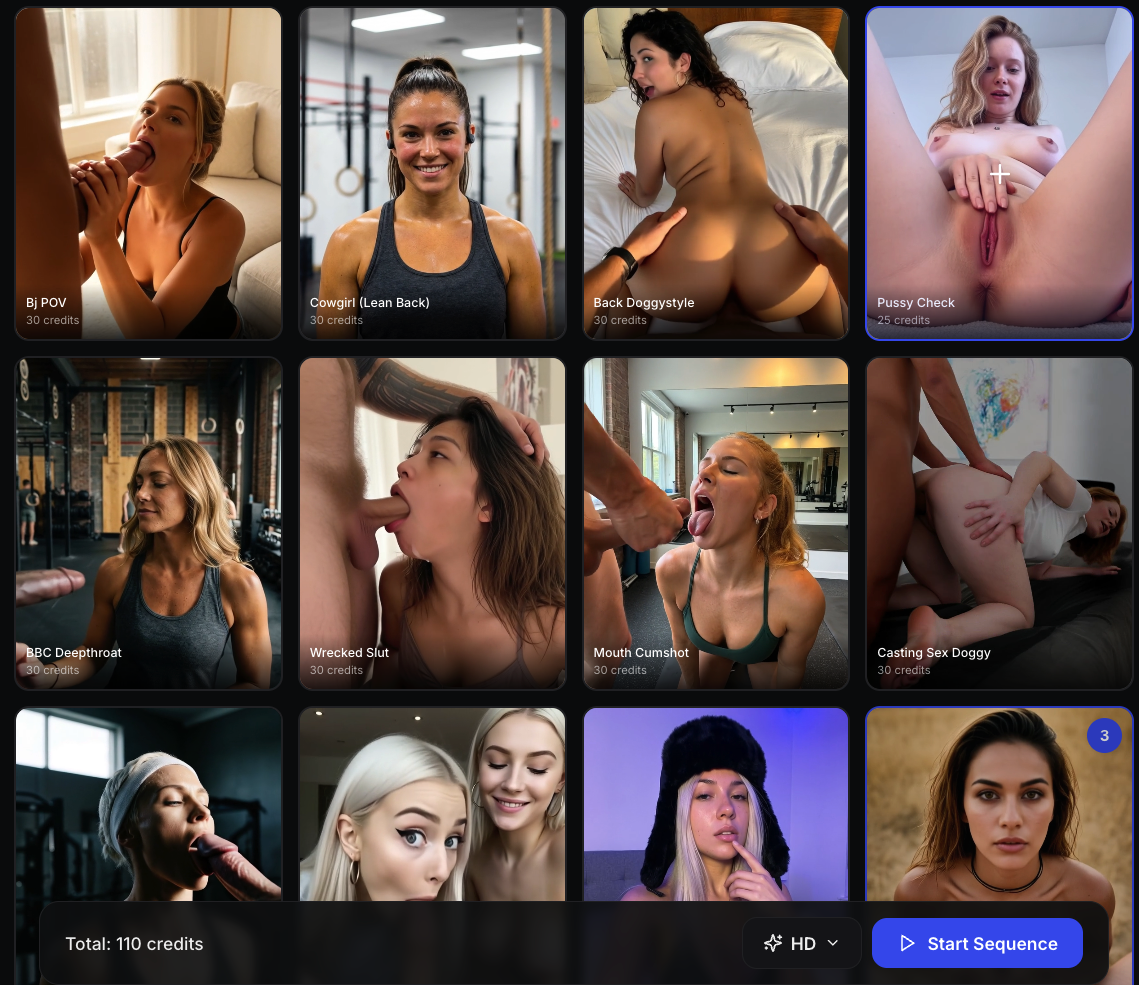
And the template grid with the bottom action bar — pick templates, see the total cost, choose quality, and start:
How to Use It: Step-by-Step Guide
Step 1: Open Video Extend
There are two ways to start:
From your Collection:
> Open musebox.ai → tap "Collection" in the bottom navigation → find a video you've generated → tap it to open the preview → look for the "Extend" button
From scratch (upload your own file):
> Open musebox.ai → go to "Collection" → tap "Extend Sequence" at the top → drag & drop or tap the upload zone to upload your photo or video
Step 2: Choose Your Pipeline
You have two options:
Option A: Use a Preset (Recommended)
Presets are pre-built template combinations curated by the Musebox team. Each preset card shows:
- Preview thumbnail with video autoplay on hover
- Number of steps (e.g., "3 steps")
- Total cost in credits
Just tap a preset card and the entire sequence loads instantly. The pipeline at the top fills in with all the steps — ready to go.
> Look for the "Presets" section right below the pipeline. Scroll horizontally to browse all available presets.
Option B: Build Your Own Sequence
Scroll down to the "Select Template" section. You'll see all available video templates in a grid.
- Tap a template to add it as the next step
- A numbered badge appears showing the step order (1, 2, 3...)
- Tap a selected template again to remove it
- You can add up to 5 steps maximum
> The pipeline visualization at the top updates in real-time as you add/remove templates.
Step 3: Reorder Steps (Optional)
Want to change the order? Simply drag and drop the step cards in the pipeline. Grab any card and slide it left or right.
Step 4: Choose Quality
Before starting, pick your quality tier from the bottom bar:
| Quality | Speed | Plan Required |
|---------|-------|---------------|
| Fast | Fastest | Free |
| Normal | Balanced | Free |
| Medium | Higher quality | Pro |
| HD | Maximum quality | Premium |
> Tap the quality button (shows "Normal" by default) in the bottom bar to see all options.
Step 5: Start the Sequence
Check the total cost in the bottom bar. Hit "▶ Start Sequence" and you're done! The video appears in your Collection when ready.
Not enough credits? A purchase modal pops up automatically.
Presets: One-Tap Sequences
Presets are the fastest way to create multi-step videos:
- Curated combinations — templates that flow naturally together
- Video previews — hover to see a preview of what the result looks like
- One tap setup — the entire pipeline loads instantly
- Transparent pricing — see steps + total cost upfront
New presets are added regularly. Check back often!
Tips & Tricks
Start with a good source. High-resolution, well-lit photos or videos give the best results across all steps.
Presets first, customize later. Load a preset, then swap individual steps if you want to tweak.
Watch the credit total. The bottom bar always shows the running total. Plan accordingly.
Drag to reorder. Step order matters! Different orders produce different results from the same templates.
Upload works too. You don't need an existing generation — upload any photo or video to start fresh.
What's Next
We're adding more presets and expanding the template library for sequences. Got ideas? Let us know!
Open Musebox and try Video Extend →
Follow us for updates: